
Autofill Upwork Proposals with VeloFill
Step-by-step guide to set up VeloFill to autofill Upwork proposals, from knowledge base templates to review-ready cover letters.
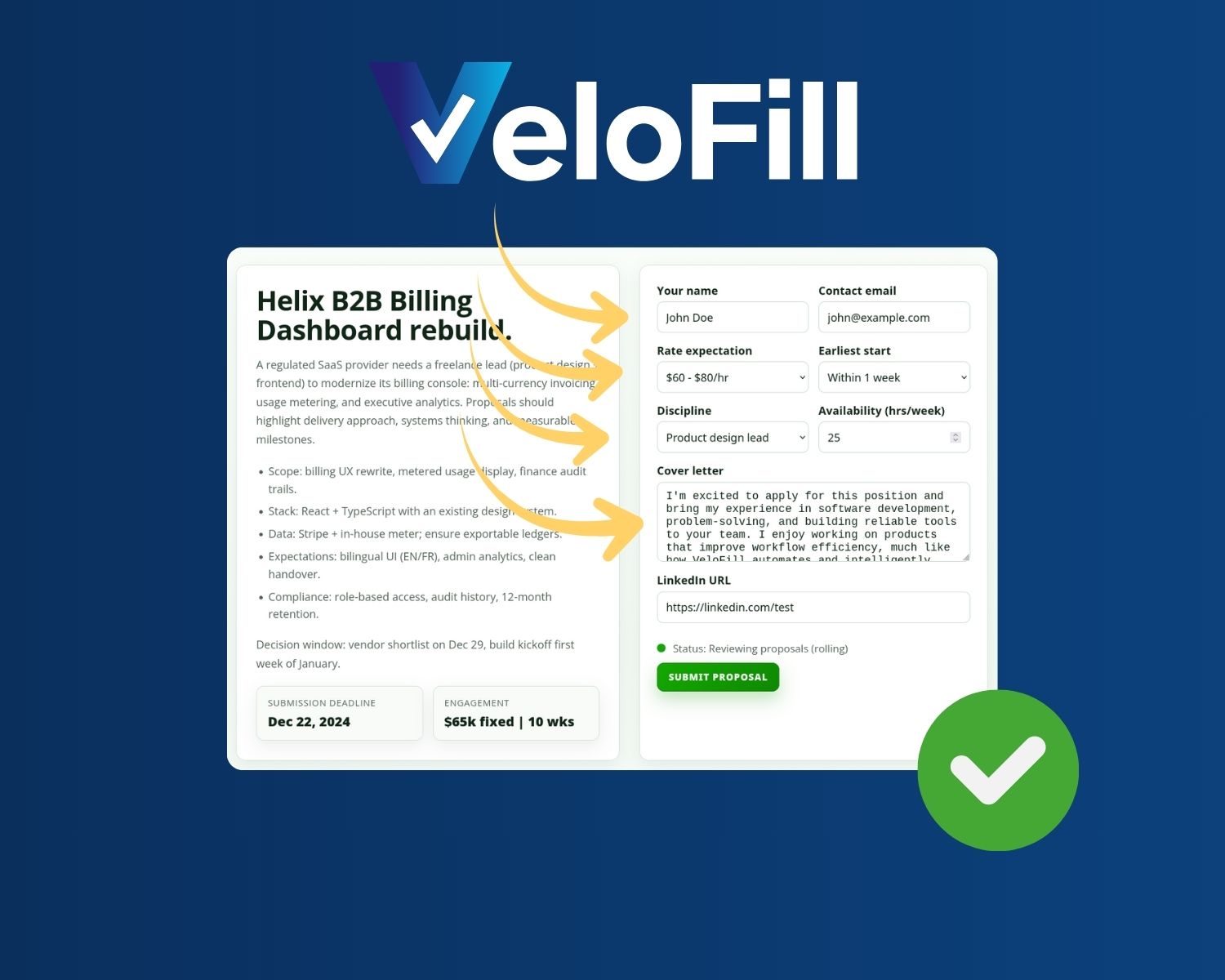
Every freelancer knows the drag: retyping your name, rate, and portfolio link for every Upwork proposal. This repetition costs time, invites typos, and limits how many quality proposals you can send. Upwork proposal automation with VeloFill eliminates the busywork while keeping you in control of every submission.
Quick Start
- Install VeloFill and confirm it’s active in the toolbar
- Connect an AI model in Options → Connections
- Create an Upwork Knowledge Base with your template content
- Open a job, click Apply, and let VeloFill fill the form
- Review, tweak, and submit
Why Automate Upwork Proposals
Upwork’s proposal flow repeats the same fields every time: hourly rate, cover letter, availability, and screening questions. Filling these manually means less time researching clients and crafting compelling openers. A reliable autofill workflow keeps your baseline consistent—accurate rates, correct portfolio links, professional formatting—so you can focus on the personalized pitch that wins the gig.
How VeloFill Works
VeloFill scans the Upwork proposal form, identifies each field, and fills it using a Knowledge Base you control. Your stored profile, rates, and project highlights map to the form instantly. You review the output before submitting, so automation stays human-approved rather than robotic.
For Upwork’s official guidance on proposals, see their proposal help center.
Set Up VeloFill for Upwork
Before your first autofill, complete this one-time setup:
-
Install the extension from the Chrome Web Store or Firefox Add-ons. Click the VeloFill icon to confirm it’s running.
-
Connect an AI model in Options → Connections. Add your API key (OpenAI, Mistral, or compatible provider), load available models, and set a default. For privacy, local models like Ollama keep all data on your machine.
-
Create an Upwork Knowledge Base in Options → Knowledge Bases. Give it a clear name like “Upwork Proposals” and paste your template content (see below). Link it to your connection.
-
(Optional) Enable vault encryption in Options → Security & Encryption to protect API keys and Knowledge Bases with a master password.
Build Your Upwork Proposal Knowledge Base
Your Knowledge Base stores everything VeloFill needs to fill proposals: contact details, rates, services, and proof points. Use the Instructions for AI field to guide tone and structure. If you also handle client intake questionnaires, the same approach works for longer forms—see our guide on autofilling Google Forms.
Here’s a starter template:
# Upwork Proposal Kit

## Contact
- Name: Jane Smith
- Location: Austin, TX (CST)
- Portfolio: https://janesmith.dev

## Rates
- Hourly: $75–$95 depending on complexity
- Availability: Up to 20 hours/week

## Services
- React/Next.js front-end development
- API design and integration (REST/GraphQL)
- Performance optimization

## Proof Points
- Increased conversion rate by 18% for a B2B SaaS signup flow
- Shipped a payments dashboard used by 5k+ monthly users
- Led a redesign that reduced page weight by 35%

## Cover Letter Structure
- Open by acknowledging the client's main goal
- Mention 1–2 proof points matching their requirements
- Propose a clear next step (e.g., 15-minute intro call)

## Screening Answers
- Similar project: Reference the closest proof point with tools and metrics
- Timeline: Give a realistic estimate with buffer
- Communication: State timezone, response time, and sync cadence
Adjust the voice and details to match your brand. Specific numbers build credibility.
Autofill an Upwork Proposal
With setup complete, here’s the workflow for each proposal:
- Open a job post on Upwork and click Apply Now
- Click the VeloFill icon and choose Select Form, then click the proposal form
- Select your Upwork Knowledge Base. Add Temporary Context if you want to steer answers toward specific job requirements
- Click Fill. VeloFill analyzes the form and populates the cover letter, rate, and screening answers
- Review the output: swap portfolio links, adjust the rate, tighten the cover letter. Submit when ready
Screening question examples
VeloFill handles common screening questions using your Knowledge Base patterns:
- Describe a similar project: “I built a payments dashboard serving 5k+ monthly users for a B2B SaaS company, resulting in an 18% conversion lift.”
- What’s your timeline? “Two-week sprint: discovery in days 1–2, build through day 10, QA and handoff by day 14. Includes buffer for feedback.”
- How do you communicate? “I’m in CST with a <12-hour response window. I run weekly 20-minute syncs and send async Loom updates between calls.”
Add similar patterns to your Knowledge Base and adjust metrics per proposal.
Customize with Temporary Context
Temporary Context lets you tailor a single proposal without editing your Knowledge Base. Paste key details from the job post—tech stack, timeline pressure, specific goals—and VeloFill weighs them when generating answers.
Example: For a job emphasizing fast turnaround, add “Client needs MVP in two weeks. Highlight quick starts and daily async updates.” VeloFill adjusts tone and examples accordingly.
FAQ
Is automating Upwork proposals allowed? Yes. VeloFill assists your workflow—you review and approve every proposal before submitting. This keeps your applications authentic and compliant with Upwork’s terms.
Can I use AI for Upwork cover letters? Absolutely. VeloFill generates cover letters from your personalized templates and proof points, matching each job’s requirements. You edit before sending.
What about screening questions? VeloFill fills screening answers using patterns from your Knowledge Base. For advanced techniques, see our guide on automating job applications.
Related Resources
- Automate Job Applications with VeloFill — Broader playbook for multiple platforms
- VeloFill vs. Chrome Autofill — Compare approaches and accuracy
- Install VeloFill — Get started now
VeloFill handles the repetitive parts so you can focus on pitches that win clients. Review, tweak, submit—spend your time on strategy, not data entry.
Related reading

Gemini in Google Forms (2026): Create Forms with AI, Fill Forms with VeloFill
Gemini is for building forms and reviewing responses inside Google Forms. VeloFill is for filling forms repeatedly across websites with consistent context.
Read more →
Automate Your Blog Workflow: Stop Wasting Hours on Form Submission
Content creators waste hours on repetitive form submission for guest posts, syndication, and newsletters. This guide shows you how to automate blog workflows using a knowledge base and AI-powered form filling.
Read more →
AI Form Filler Extension: Safer Than AI Browsers
Browser extensions and AI browsers take fundamentally different approaches to AI form filling. This guide explains the security architecture differences, prompt injection risks in AI browsers, and why extensions provide a safer foundation for professional use.
Read more →Need a guided walkthrough?
Our team can help you connect VeloFill to your workflows, secure API keys, and roll out best practices.