
ChatGPT Autofill Forms: 3 Ways to Fill Web Forms with AI (Safely)
Three realistic ways to fill web forms faster with AI: copy/paste with a reusable prompt, writing assistance with ChatGPT's Atlas browser, and secure one-click autofill using a private knowledge base with VeloFill.
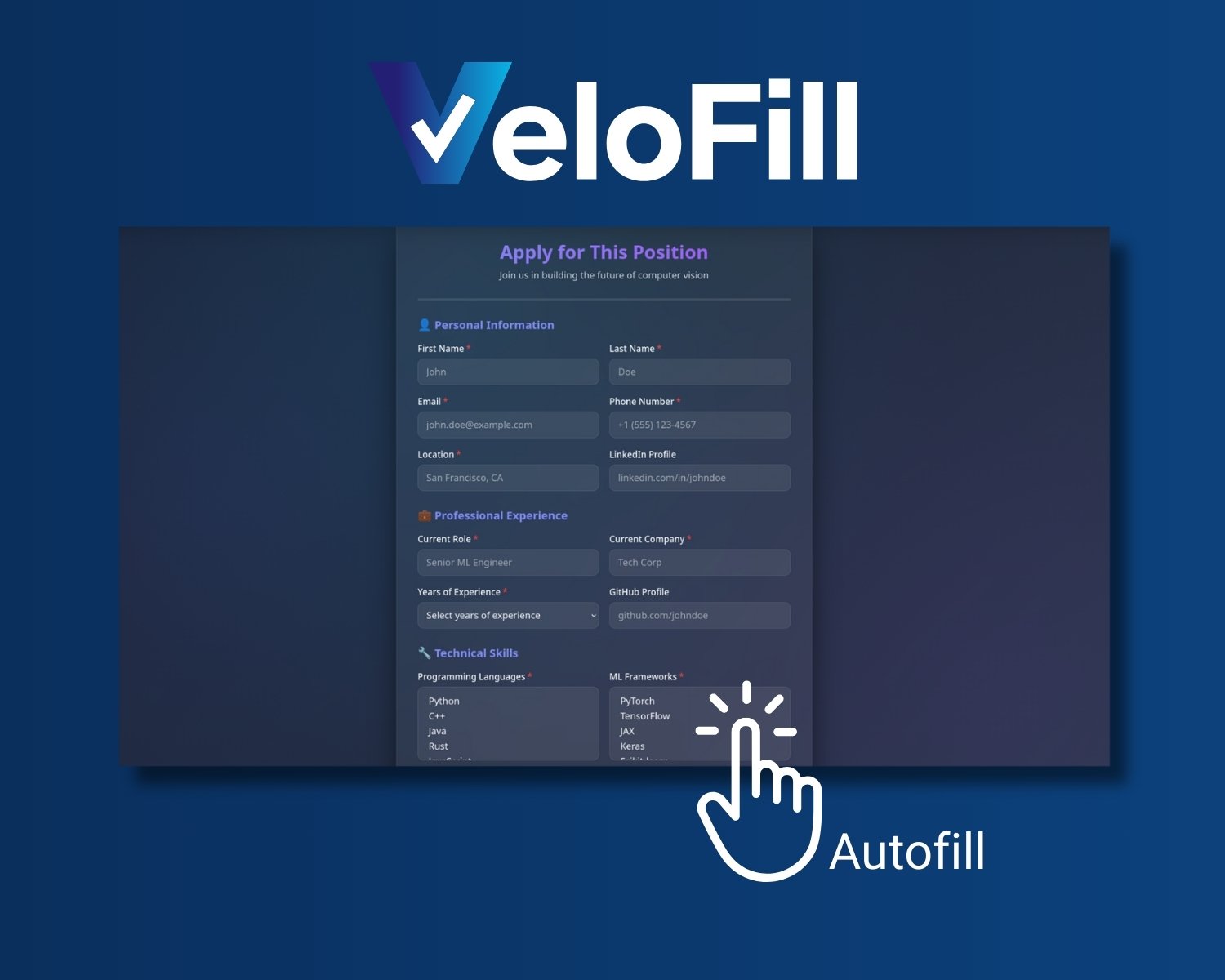
Filling the same web forms over and over is a special kind of tedious: job applications, signup flows, demo requests, onboarding questionnaires, CRM updates, support portals, internal tools. If you’re filling similar forms multiple times per week, you’re likely spending 15–20 minutes per form on repetitive data entry.
AI can help — but “autofill” usually means one of two things:
- Write better answers faster (you still paste them into the form)
- Actually populate the fields for you (the real “autofill button”)
This guide walks through three practical approaches to automatic form filling, when each one is worth it, and the safety rules to follow if the form includes personal or sensitive data.
The three ways to “ChatGPT autofill” forms
- Copy/paste answers generated by ChatGPT (zero setup, still manual)
- Use ChatGPT’s Atlas browser for writing assistance (great for drafting, not full autofill)
- Use a private AI form-filler extension with a knowledge base (true autofill across sites with local data storage)
Quick comparison: which method should you use?
| Method | Setup Time | Privacy | Best For | Time Saved per Form |
|---|---|---|---|---|
| Copy/paste with ChatGPT | None | Data sent to OpenAI | Occasional forms, long-text writing | 5–10 min |
| ChatGPT Atlas browser | 5 min install | Data sent to OpenAI; browsing private | Writing assistance, drafting answers | 10–15 min |
| VeloFill (AI form filler) | 10 min setup | 100% local storage, your own AI | Repetitive forms, job apps, any frequent use | 15–20 min |
Quick pick:
- If you fill forms once in a while, start with Method 1.
- If the form is mostly writing (cover letters, “tell us about yourself”, short essays), Method 2 is usually enough.
- If you fill forms often and want the fields populated reliably with maximum privacy, Method 3 is the “autofill button” experience.
Method 1: Copy/paste with a reusable prompt
This is the lowest-friction approach: you keep your “profile” (the facts you reuse) in a note, then ask ChatGPT to generate answers for the specific form you’re filling.
A prompt template you can reuse
Create a single prompt you can paste into ChatGPT each time:
You are helping me fill out a web form.

Rules:
- Use the Profile Facts as the source of truth.
- If the form asks for something not in Profile Facts, ask me a clarifying question.
- Keep answers concise unless the field suggests long-form (e.g., cover letter, description).
- Use the same formatting and tone across fields.

Profile Facts:
- Full name:
- Email:
- Phone:
- Location:
- LinkedIn:
- Company:
- Role/title:
- Short bio (2–3 sentences):
- Long bio (150–250 words):
- Default "about us" blurb (for demo/contact forms):
- Common answers (salary expectations, availability, etc.):

Form Fields (copy these from the page):
1) ...
2) ...
3) ...
When this works best
- You only fill forms occasionally.
- The form is mostly long-text writing (messages, descriptions, “why do you want this?”).
- You don’t want to install anything.
Where it breaks down
- You still need to copy/paste field-by-field.
- You’ll re-explain the same facts repeatedly unless you manage your own “profile facts.”
- It’s easy to accidentally paste sensitive information into the wrong field.
- Privacy concern: All data is sent to OpenAI’s servers.
If you’re filling forms weekly (or daily), the time cost adds up quickly.
Method 2: Use ChatGPT’s Atlas browser for writing assistance
If your main pain is writing (not field-mapping), ChatGPT’s Atlas browser can be a significant quality-of-life upgrade. Atlas is OpenAI’s new web browser with ChatGPT built in, designed to help you browse, research, and write more effectively.
What Atlas can (and can’t) do for forms
What Atlas IS good at:
- In-field writing and editing: Pull up ChatGPT in any text field to draft or refine content without switching tabs
- Multi-field context: ChatGPT can see the page you’re on and help craft answers that fit the form’s tone and requirements
- Iterative drafting: Highlight text, ask for revisions, and polish answers in real-time
- Research while filling: If a form asks questions you need to look up, Atlas can browse, summarize, and help you write the answer
What Atlas is NOT:
- Not a traditional autofill tool: Atlas does not automatically populate fields across the form with saved data
- Not a data vault: Cannot access browser autofill data, saved passwords, or local storage
- Not fully automated: You still guide the process field-by-field; Atlas assists with writing, not form detection and filling
According to OpenAI’s official Atlas documentation, Atlas operates under strict boundaries:
System access: Cannot run code in the browser, download files, or install extensions.
Data access: Cannot access other apps on your computer or your file system, read or write ChatGPT memories, access saved passwords, or use autofill data.
A practical workflow with Atlas
- Open the form and skim it once so you know what it’s asking.
- For the writing-heavy fields, give Atlas your rough notes (or your resume / product blurb) and ask for a draft that matches the field length.
- Use the in-field writing feature: highlight the text field and click the ChatGPT logo to generate or edit directly.
- Review and refine before you hit submit.
When to use Atlas for forms
- Long-text fields (cover letters, project descriptions, “tell us about yourself”)
- Context-dependent answers where you need to match the tone or requirements of the specific form
- Forms that require research (e.g., “Why are you interested in this role?” where you need to reference the company’s mission)
- One-off or infrequent forms where you value writing quality over speed
When Atlas isn’t enough
- High-volume repetitive forms (job applications, lead forms, event registrations)
- Forms with many structured fields (addresses, dropdowns, checkboxes, dates)
- Privacy-sensitive use cases where you don’t want data sent to external servers
- Offline or air-gapped environments
If what you want is repeatable, consistent autofill across many websites with complete data privacy, you’ll want the third approach. For a detailed comparison of browser autofill approaches, see our VeloFill vs Chrome Autofill analysis.
Method 3: One-click autofill with VeloFill (private AI form filler)
If your goal is “click once and have the whole form filled” while keeping your data completely private, you need two things:
- A knowledge base that stores the information you want to reuse (stored locally on your device).
- A system that can understand what each field means and map the right data into it (AI + field recognition).
That’s what VeloFill is built for: an AI-powered browser extension that intelligently fills web forms using your own private knowledge base and any OpenAI-compatible LLM you control.
VeloFill’s privacy-first approach
Unlike cloud-based form fillers or AI assistants that send your data to external servers:
- 100% local storage: Your knowledge base never leaves your device
- You control the AI: Connect to your own OpenAI API, local Ollama models, or any OpenAI-compatible endpoint
- Optional encryption: Add vault encryption to protect your knowledge bases and API credentials
- No tracking: VeloFill doesn’t collect, store, or transmit your form data to third parties
- Works behind logins: Fills forms on authenticated pages, CRMs, internal tools — anywhere you can access in your browser
For maximum privacy, route requests to a local AI model (e.g., Ollama with Llama or Gemma).
This means zero data leaves your machine — ideal for sensitive use cases like job applications with salary data, client intake forms, or internal company tools.
Quick start: autofill forms with VeloFill
- Install VeloFill: Installation guide
- Connect your LLM provider (OpenAI-compatible endpoint, cloud or local): Configure LLM
- Create a knowledge base with your reusable facts and answers: Knowledge base setup
- Open a form, click the VeloFill icon, select the right knowledge base, then Fill.
Tips for better autofill accuracy
- Create separate knowledge bases for different contexts (e.g., “Work”, “Personal”, “Client A”).
- Put both short and long versions of common answers into your knowledge base (one-liners + longer explanations).
- Use per-knowledge-base instructions to enforce tone and formatting (bullets, sentence case, no emojis, etc.).
- Review filled fields before submitting — AI is smart, but you’re the final check.
When VeloFill makes sense
- You fill similar forms regularly (weekly or daily)
- Privacy is critical (personal data, company info, client details)
- You want consistent answers across multiple sites without retyping
- You need offline capability (local AI models work without internet)
- You fill forms behind logins (job portals, CRMs, support dashboards)
Typical use cases: job applications, client intake questionnaires, demo requests, event registrations, KYC/onboarding forms. For B2B marketers filling lead capture forms at scale, see our lead generation automation guide.
How to do “ChatGPT autofill” safely (essential privacy rules)
No matter which method you use, follow these guardrails to protect sensitive data:
What AI should NEVER touch
- Passwords (use a dedicated password manager)
- Payment details (credit cards, bank accounts, CVVs)
- Government IDs (SSN, passport numbers, driver’s license)
- One-time codes (2FA, OTP, verification tokens)
- Medical information (diagnoses, prescriptions, health records)
Security best practices for AI form fillers
-
Understand where your data goes:
- Cloud AI (ChatGPT, Claude): Data is sent to external servers (read their privacy policies)
- Local AI (Ollama, LM Studio): Data stays on your machine
- VeloFill: Knowledge base stored locally; only form context sent to your chosen AI endpoint
-
Check extension permissions carefully:
- Be cautious with extensions that request “read and change all data on websites”
- VeloFill requires these permissions to detect and fill form fields, but your data stays local
- In 2024, malicious “AI autofill” browser extensions were caught logging credit card numbers, CVVs, and personal data from form fields. Always verify the source and developer reputation before installing.
-
Use encryption for stored data:
- VeloFill supports vault encryption to protect your knowledge bases and API keys at rest: encryption guide
- Set a strong master password and never store it in your browser
-
Prefer “bring your own AI” tools:
- When possible, use tools that let you choose the AI provider
- This gives you control over data handling, compliance, and costs
- VeloFill works with any OpenAI-compatible API (cloud or local)
-
Back up safely:
- Export your knowledge bases: import/export guide
- Store backups in a secure location (encrypted cloud storage, password manager, or offline drive)
- Note: Export files contain unencrypted data, so protect them accordingly
-
For maximum privacy: go local:
- Run AI models on your own hardware with Ollama or LM Studio
- Example setup: run VeloFill with Ollama
- Or route through a local LLM proxy: route VeloFill through LiteLLM
Why VeloFill’s privacy model matters
Most AI tools send your prompts and data to cloud providers (OpenAI, Anthropic, Google). This is fine for casual use, but risky for:
- Job seekers sharing salary expectations, employment history, references
- Sales teams entering client names, deal sizes, contact info
- Freelancers submitting proposals with rate cards and project details
- Anyone filling compliance forms (KYC, background checks, tax forms)
VeloFill’s architecture keeps you in control:
- Local-first storage: Knowledge bases encrypted and stored on your device
- API flexibility: Use cloud AI when convenient, local AI when private
- No middleman: Direct connection from browser → your chosen AI endpoint
- Audit trail: You can inspect exactly what data is sent in each request
FAQ
Can ChatGPT autofill forms automatically?
ChatGPT can generate the content, but “autofill” (populating the actual fields on the page) requires a browser feature or an extension that can read the form and insert values. ChatGPT alone cannot interact with form fields on external websites.
Is ChatGPT’s Atlas browser enough for autofilling forms?
It depends on your use case. If your forms are mostly writing (cover letters, descriptions, essay questions), Atlas is excellent — it helps you draft faster and stays in the browser. If your forms have many structured fields (addresses, checkboxes, multi-step pages, repetitive applications), you’ll usually want a purpose-built AI form filler with a reusable knowledge base like VeloFill.
Atlas is a writing assistant, not a traditional autofill tool. It cannot access saved passwords, browser autofill data, or automatically populate fields without your input.
Does VeloFill work on job applications?
Yes — job applications are one of the most common use cases. VeloFill can fill application forms on job boards (LinkedIn, Indeed, Greenhouse, Lever, etc.) and company career pages. Start here: automate job applications with VeloFill
Will VeloFill work behind logins?
Yes. If you can access the page in your browser, VeloFill can fill forms there. This includes CRMs, support portals, internal tools, authenticated job boards, and client dashboards. The key is choosing the right knowledge base and reviewing before submitting.
Can I keep my data private when using AI to fill forms?
Yes, but it depends on the tool:
- ChatGPT/Atlas: Data is sent to OpenAI’s servers (see their privacy policy)
- VeloFill with local AI: 100% private — your knowledge base stays on your device, and requests go to a local model (e.g., Ollama). Zero data leaves your machine.
- VeloFill with cloud AI: Knowledge base is local, but form context is sent to your chosen API (OpenAI, Anthropic, etc.)
For maximum privacy, use VeloFill with a local AI model.
Is it safe to use browser extensions for autofill?
It depends on the extension. In 2024, security researchers discovered malicious browser extensions marketed as “AI form fillers” that were secretly harvesting credit card details, passwords, and personal information from form fields.
Safety checklist:
- ✅ Verify the developer/publisher reputation
- ✅ Check reviews and security audits
- ✅ Understand where your data is sent (cloud vs. local)
- ✅ Use extensions that support local AI models for sensitive data
- ✅ Enable encryption if available (VeloFill offers vault encryption)
- ❌ Avoid extensions with vague privacy policies or unknown publishers
How much time does AI autofill actually save?
Based on typical use cases:
- Copy/paste with ChatGPT: Saves 5–10 minutes per form (vs. typing from scratch)
- ChatGPT Atlas: Saves 10–15 minutes per form (better writing quality + faster drafting)
- VeloFill (AI form filler): Saves 15–20 minutes per form (one-click fill + review)
For high-volume use cases (e.g., applying to 20 jobs per week), VeloFill can save 5+ hours per week compared to manual entry.
Bottom line
If you just want better answers, use ChatGPT (or Atlas) as a writing assistant. If you want the actual “autofill button” — consistent, repeatable form filling across sites with complete data privacy — use an extension built for that job.
Choose based on your priorities:
- Convenience > Privacy: ChatGPT or Atlas (cloud AI, easy setup)
- Privacy > Convenience: VeloFill with local AI (your data never leaves your device)
- Balance of both: VeloFill with your own cloud API (local storage, you control the AI provider)
And always keep tight guardrails around sensitive fields — no AI should ever touch passwords, payment details, or government IDs.
Related reading

Gemini in Google Forms (2026): Create Forms with AI, Fill Forms with VeloFill
Gemini is for building forms and reviewing responses inside Google Forms. VeloFill is for filling forms repeatedly across websites with consistent context.
Read more →
Automate Your Blog Workflow: Stop Wasting Hours on Form Submission
Content creators waste hours on repetitive form submission for guest posts, syndication, and newsletters. This guide shows you how to automate blog workflows using a knowledge base and AI-powered form filling.
Read more →
AI Form Filler Extension: Safer Than AI Browsers
Browser extensions and AI browsers take fundamentally different approaches to AI form filling. This guide explains the security architecture differences, prompt injection risks in AI browsers, and why extensions provide a safer foundation for professional use.
Read more →Need a guided walkthrough?
Our team can help you connect VeloFill to your workflows, secure API keys, and roll out best practices.